How to Install OnStream APK on Android TV and Smart TV
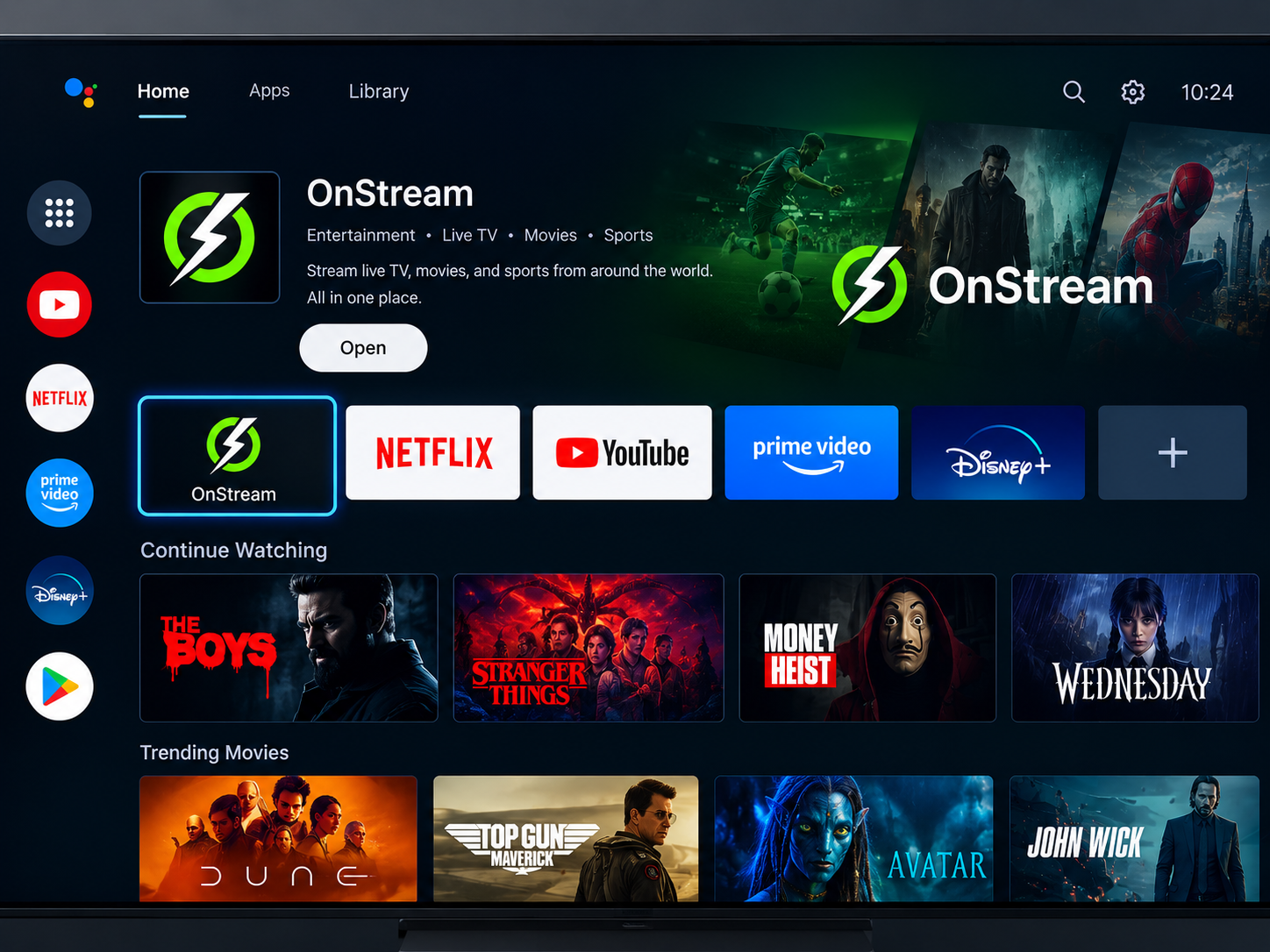
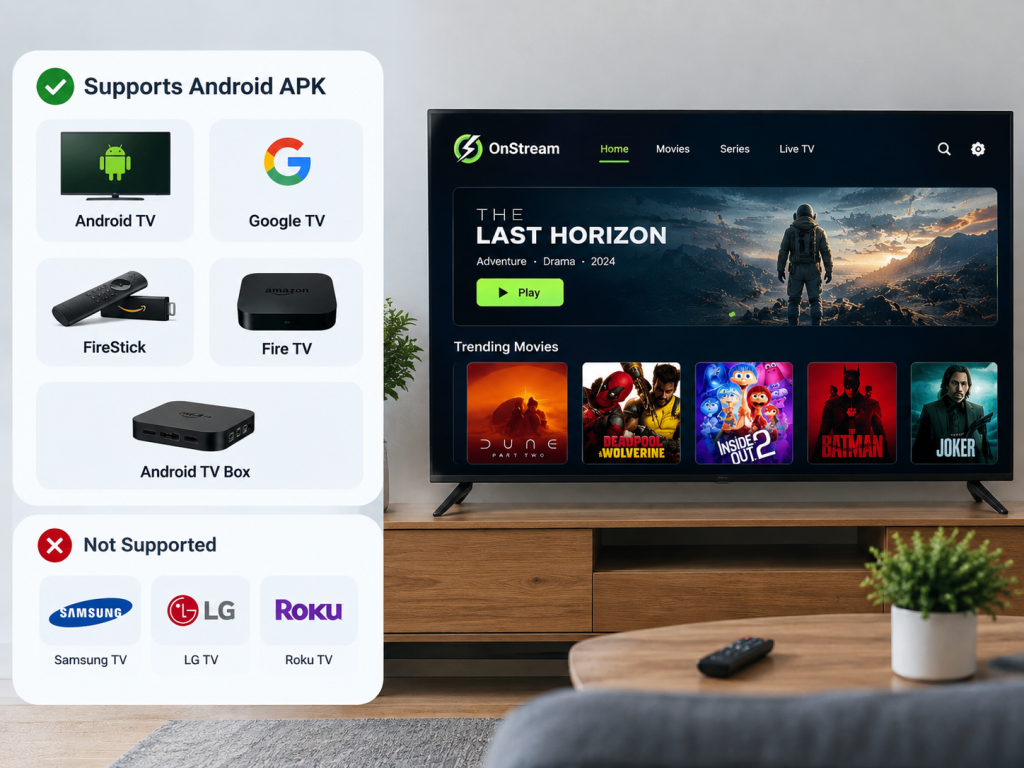
To Install OnStream APK on a TV, your device must run Android TV, Google TV, or Fire TV. Allow a trusted installer, download the correct TV-compatible APK, and complete the setup. Samsung, LG, and Roku TVs cannot directly run Android APK files.
Install OnStream APK on Android TV and Smart TV
Before you Install OnStream APK, check that your TV is connected to the internet, has free storage, and runs Android TV, Google TV, or Fire TV. For a better remote-control experience, always choose the Android TV version instead of a mobile-only APK.
Compatible Devices
| Device Type | APK Installation | Recommended Option |
|---|---|---|
| Android TV | Supported | Downloader or USB method |
| Google TV | Supported | Downloader or USB method |
| FireStick / Fire TV | Supported | Downloader method |
| Android TV Box | Supported | Downloader or USB method |
| Samsung Smart TV | Not supported | Cast from Android phone |
| LG Smart TV | Not supported | Cast from Android phone |
| Roku TV | Not supported | Use an Android TV device |
Android APK files are made for Android-based devices. Samsung uses Tizen, LG uses webOS, and Roku uses its own operating system, so those TVs do not natively install Android APK files.
Install OnStream APK With Downloader
1. Check TV Compatibility
Use Android TV, Google TV, FireStick, Fire TV, or an Android TV box. Samsung, LG, and Roku TVs do not support Android APK installation directly.
2. Install Downloader
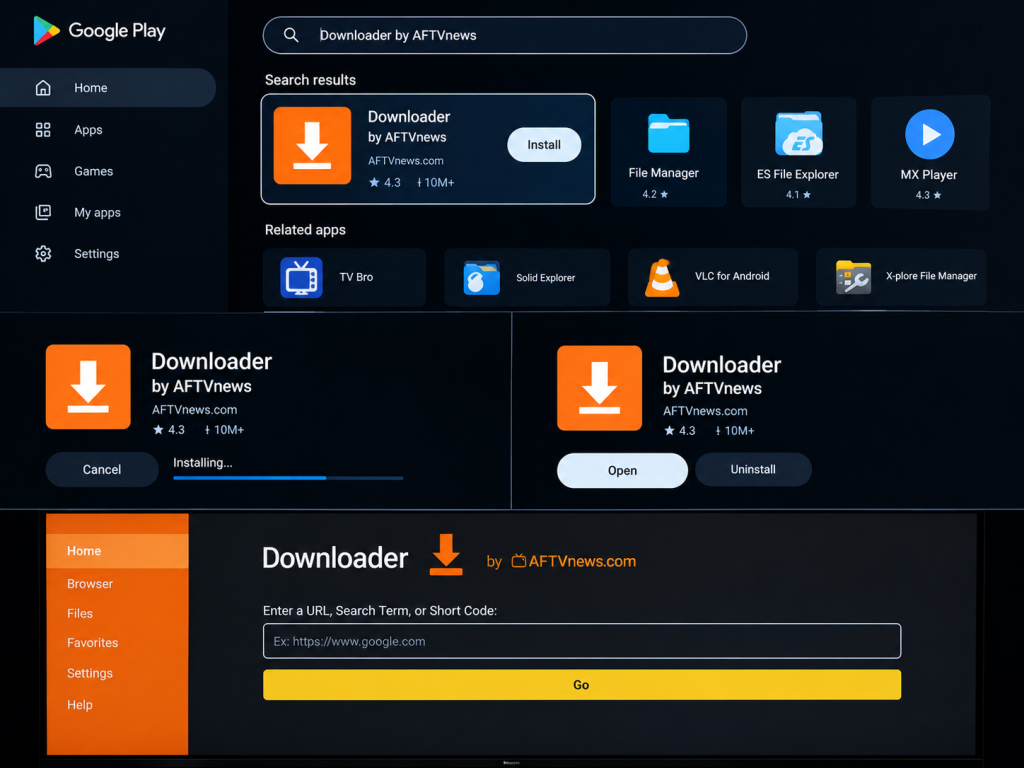
Open Google Play Store or Amazon Appstore, search for Downloader by AFTVnews, install it, and open the app.
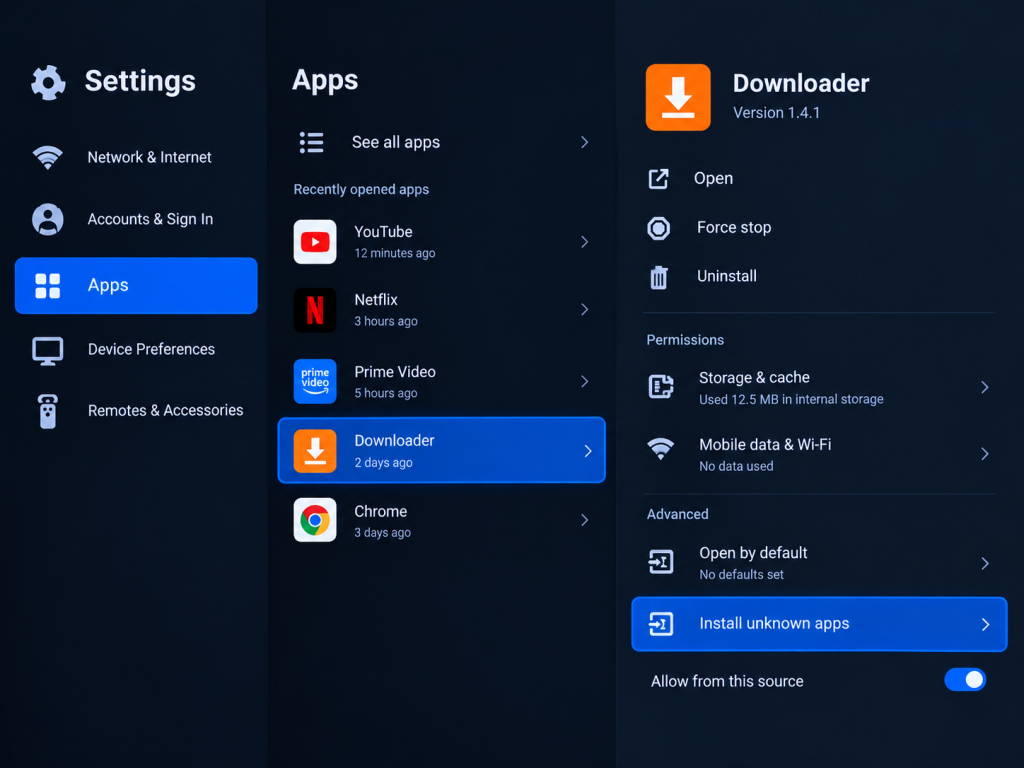
3. Allow Unknown Apps
Go to Settings > Apps > Special App Access > Install Unknown Apps. Select Downloader and turn on Allow from this source.
4. Download and Install OnStream
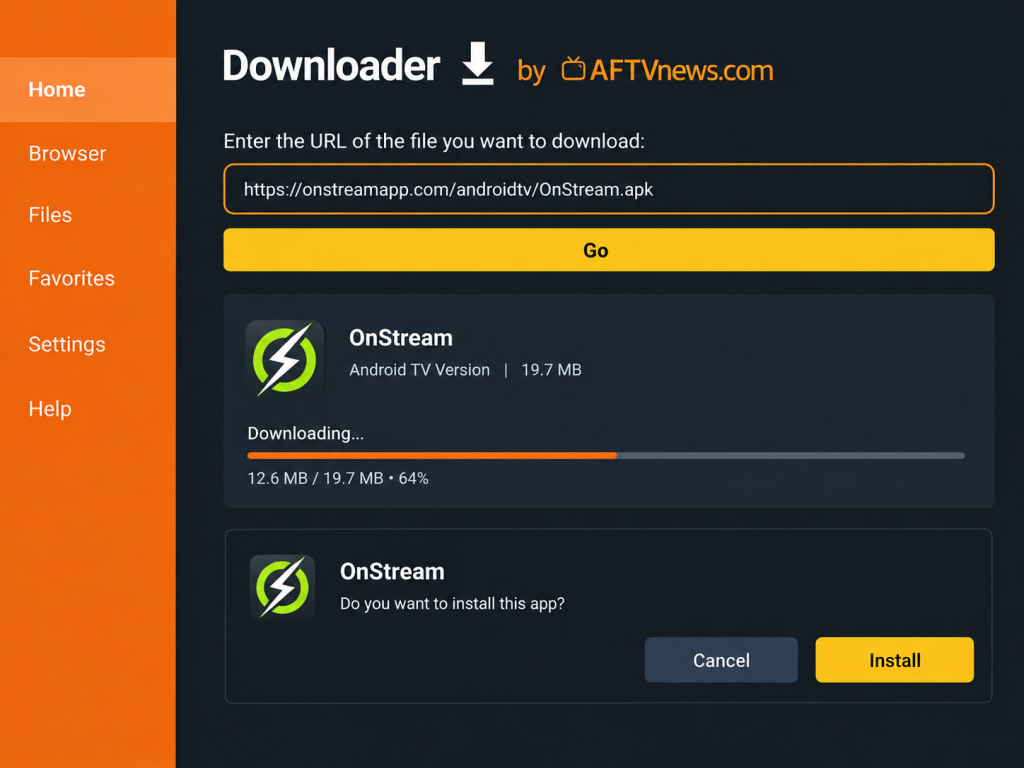
Open Downloader, enter your trusted OnStream APK link, download the Android TV version, and select Install.
5. Open the App
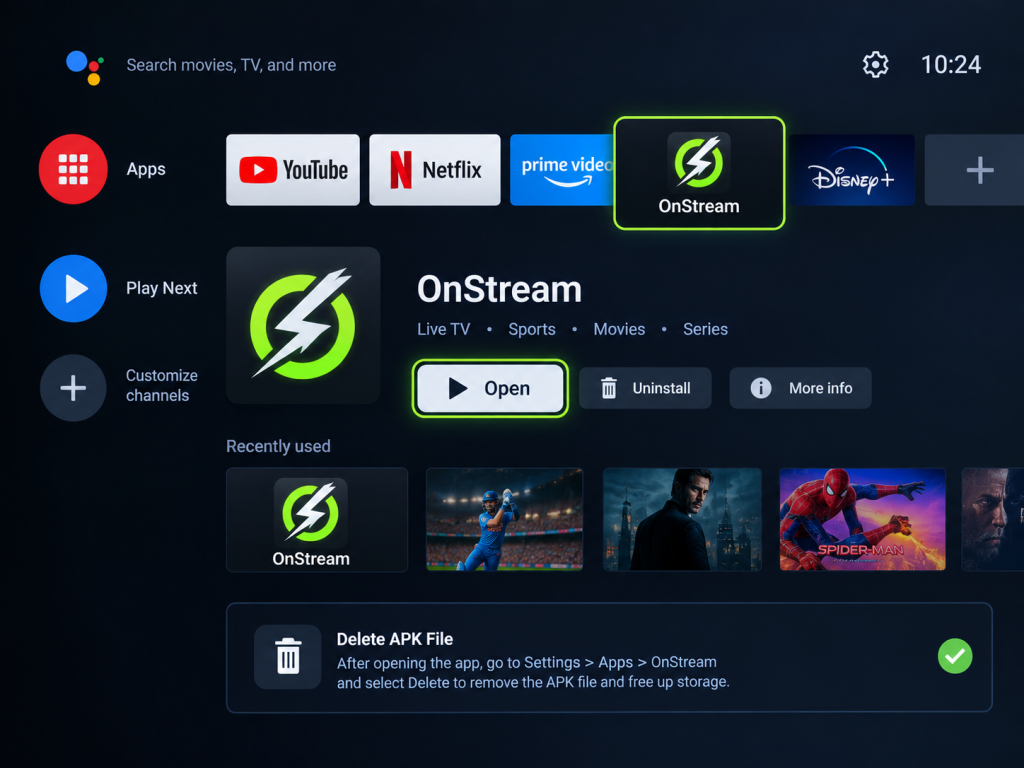
Select Open after installation or find OnStream in the Apps menu. Delete the APK file afterward to free up storage.
Install OnStream APK With USB
The USB method is useful when Downloader is not available or your internet connection is slow.
Step 1: Download the APK
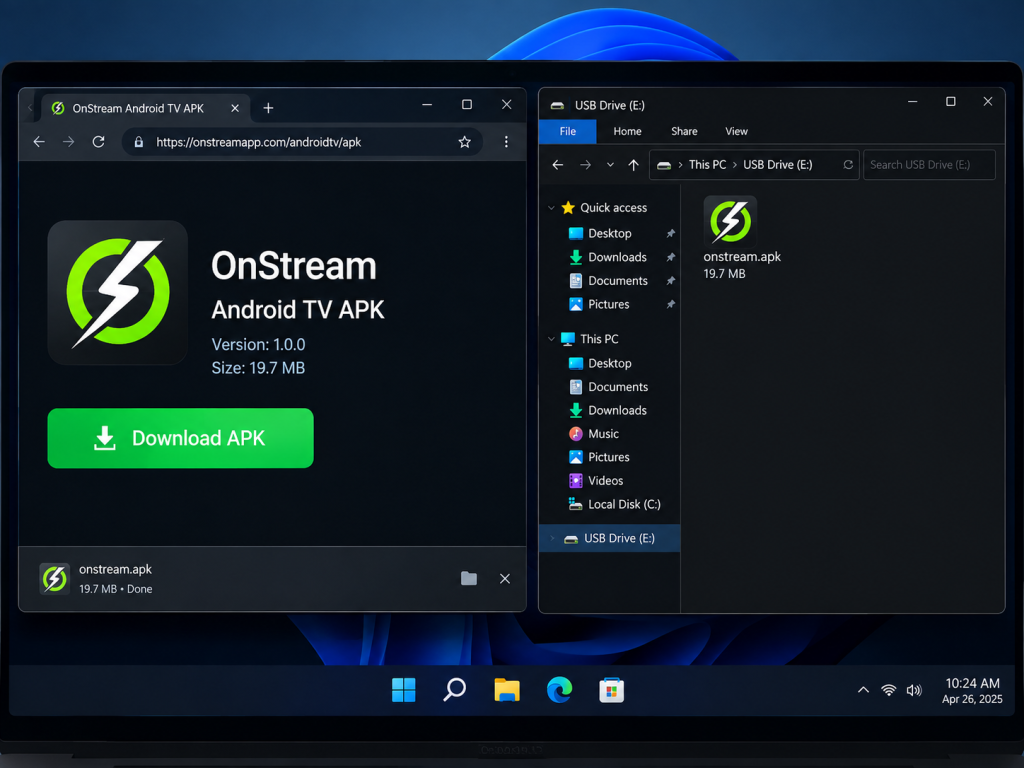
Download the Android TV APK on a computer. Save it to a USB drive.
Step 2: Connect USB to TV
Insert the USB drive into your Android TV or Android TV box. Open a file manager app and locate the APK file.
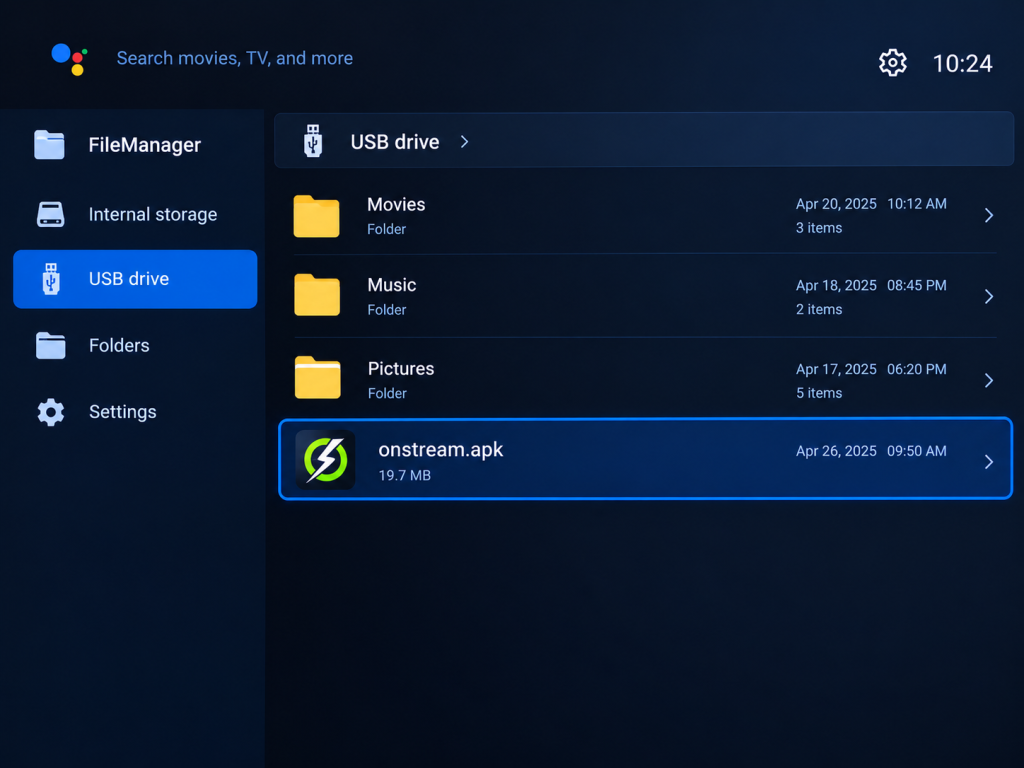
Step 3: Install the File
Select the APK file and choose Install. If your TV blocks it, go to Settings > Apps > Special App Access > Install Unknown Apps and allow permission for the file manager.
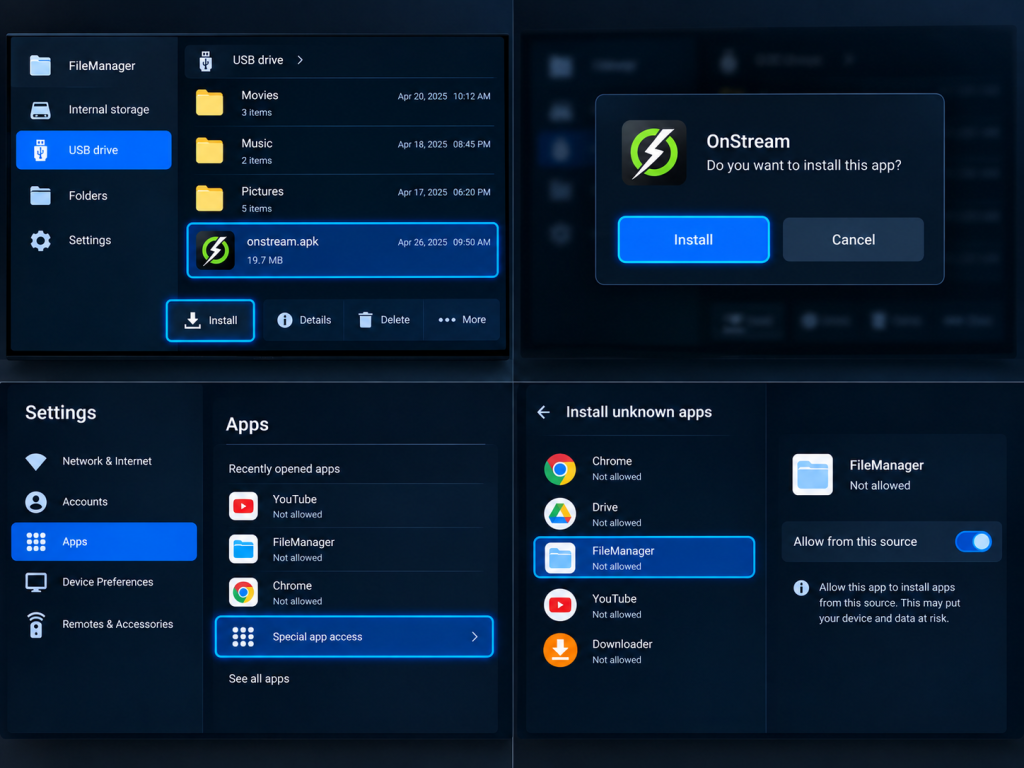
After installation, remove the USB drive and open OnStream from the Apps menu.
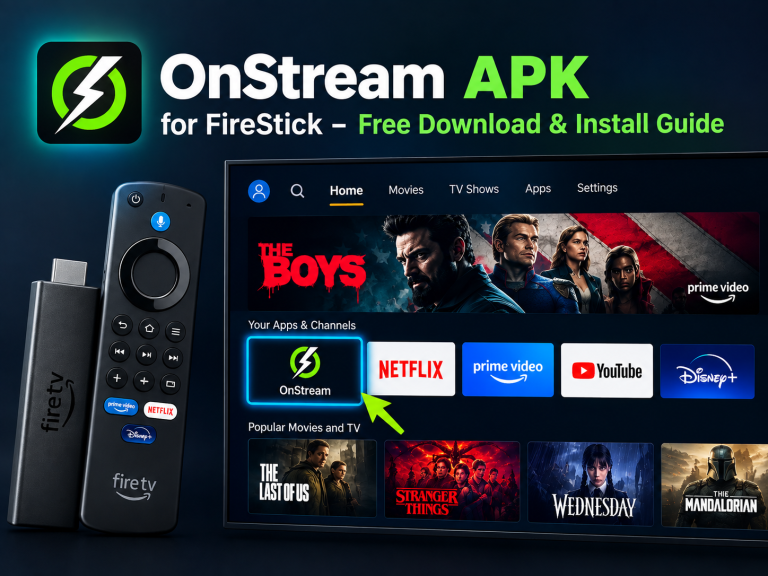
Install OnStream on FireStick
FireStick users should use the Downloader method because most FireStick models do not have a standard USB port.
- Install Downloader from the Amazon Appstore.
- Allow Downloader under Install Unknown Apps.
- Open Downloader and visit a trusted OnStream download page.
- Download the Android TV or Fire TV-compatible APK.
- Select Install when the prompt appears.
- Open OnStream from Your Apps & Channels.
Some current Fire TV models may use different platform software and may not support Android APKs. Confirm that your device runs Fire OS before attempting to sideload an APK.
Samsung, LG, and Roku TVs
Samsung, LG, and Roku Smart TVs cannot directly install Android APK files because they use non-Android operating systems.
Use one of these alternatives:
- Screen mirroring: Install OnStream on an Android phone, connect both devices to the same Wi-Fi network, and use Cast, Smart View, or Screen Mirroring.
- Android streaming device: Plug a FireStick, Chromecast with Google TV, Nvidia Shield, or Android TV box into an HDMI port.
- Official TV app store: Search your TV’s own app store for legitimate, compatible streaming apps.
An Android streaming device usually gives better remote control and playback than casting from a phone.
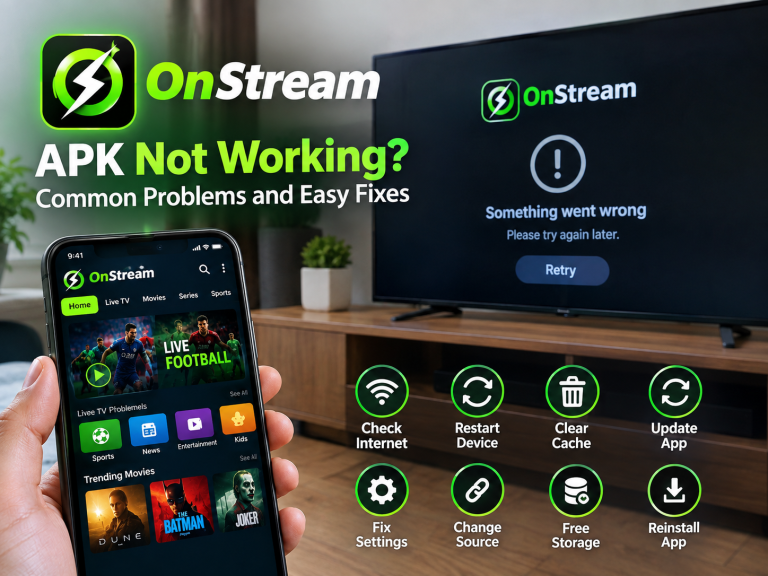
Fix OnStream APK Installation Problems
If Install OnStream APK does not complete, check the error message and use the correct solution.
“App Not Installed” Error
This usually happens because the APK download is incomplete, your device storage is low, or an older version conflicts with the new file.
- Delete the incomplete APK and download it again.
- Free up device storage.
- Uninstall the old app version before installing a different build.
- Confirm that you downloaded the Android TV APK, not an incompatible file.
“Unknown Sources” or “For Your Security” Message
This means Downloader or your file manager does not have installation permission.
- Open Settings > Apps > Special App Access > Install Unknown Apps.
- Select the app you used to open the APK.
- Turn on Allow from this source.
- Start the installation again.
App Opens but Does Not Work With the Remote
This often happens when a mobile version is installed on a television.
- Download the dedicated Android TV version.
- Restart your TV after installing it.
- Connect a Bluetooth mouse only if you must use a mobile-only app interface.
OnStream Is Not Showing in the Apps List
Restart the device, then check Settings > Apps > See All Apps. You can also use the search feature on your Android TV home screen to find the installed app.
How to Use OnStream on Samsung and LG Smart TVs
You cannot directly Install OnStream APK on a Samsung or LG Smart TV because they do not use Android TV. Samsung uses Tizen OS and LG uses webOS, while APK files are designed for Android systems.
You still have two practical choices:
- Cast from Android: Install OnStream on your Android phone, connect the phone and TV to the same Wi-Fi network, then use Cast or Screen Mirroring.
- Use an Android streaming device: Connect a FireStick, Chromecast with Google TV, Android TV box, or similar device to an HDMI port and install the Android TV APK there.
Casting quality depends on your Wi-Fi connection and phone support. An Android streaming device usually offers a more convenient remote-based setup.
Safety Tips Before Installing APKs
When you Install OnStream APK outside an official app store, take a few safety steps:
- Download only from a source you trust.
- Do not install unknown “mod” or “premium unlocked” files.
- Check that the file is an APK, not an unusual file type.
- Scan the APK with a reputable security tool when possible.
- Review the permissions requested by the app.
- Delete the installer file after installation.
- Turn off Unknown Apps permission for Downloader or your file manager after setup.
Enabling Unknown Apps should be limited to the installer you trust; it is not necessary to leave this permission enabled permanently.
Conclusion
To Install OnStream APK on Android TV, Google TV, or FireStick, first install Downloader, allow installation from unknown apps, download the correct Android TV APK, and select Install. If Downloader does not work, transfer the APK through a USB drive and install it using a file manager.
For Samsung, LG, and Roku TVs, use screen mirroring or connect an Android-based streaming device because those TVs cannot run Android APK files directly.
Frequently Asked Questions
Does OnStream work on Samsung Smart TV?
No, Samsung Smart TVs use Tizen OS and cannot install Android APK files. Use screen mirroring or connect a FireStick or Android TV box instead.
How do I allow APK installation on Android TV?
Open Settings, go to Apps, select Special App Access, choose Install Unknown Apps, select Downloader, and turn on Allow from this source.
Why is OnStream APK not installing on my TV?
The APK may be incomplete, unsupported, or blocked by device settings. Download the Android TV version, free up storage, and enable Unknown Apps permission.
Can I install OnStream APK on FireStick?
Yes, install Downloader from the Amazon Appstore, allow Unknown Apps for Downloader, download the Fire TV version, and complete the installation prompt.

hi, i need the download link for onstream apk for Smart Tv. So i can put on my USB and install on my TV, the apks i keep finding is the Phone versions, doesnt work nice on the Tv, thanks
Hi! You need the Android TV version of OnStream, as the phone APK may not work properly with your TV remote or screen. You can find the TV-compatible APK on our website, then copy it to a USB drive and install it on your TV. Make sure your TV runs Android TV or Google TV, as Samsung and LG TVs use different operating systems.