OnStream APK Not Working? Common Problems and Easy Fixes
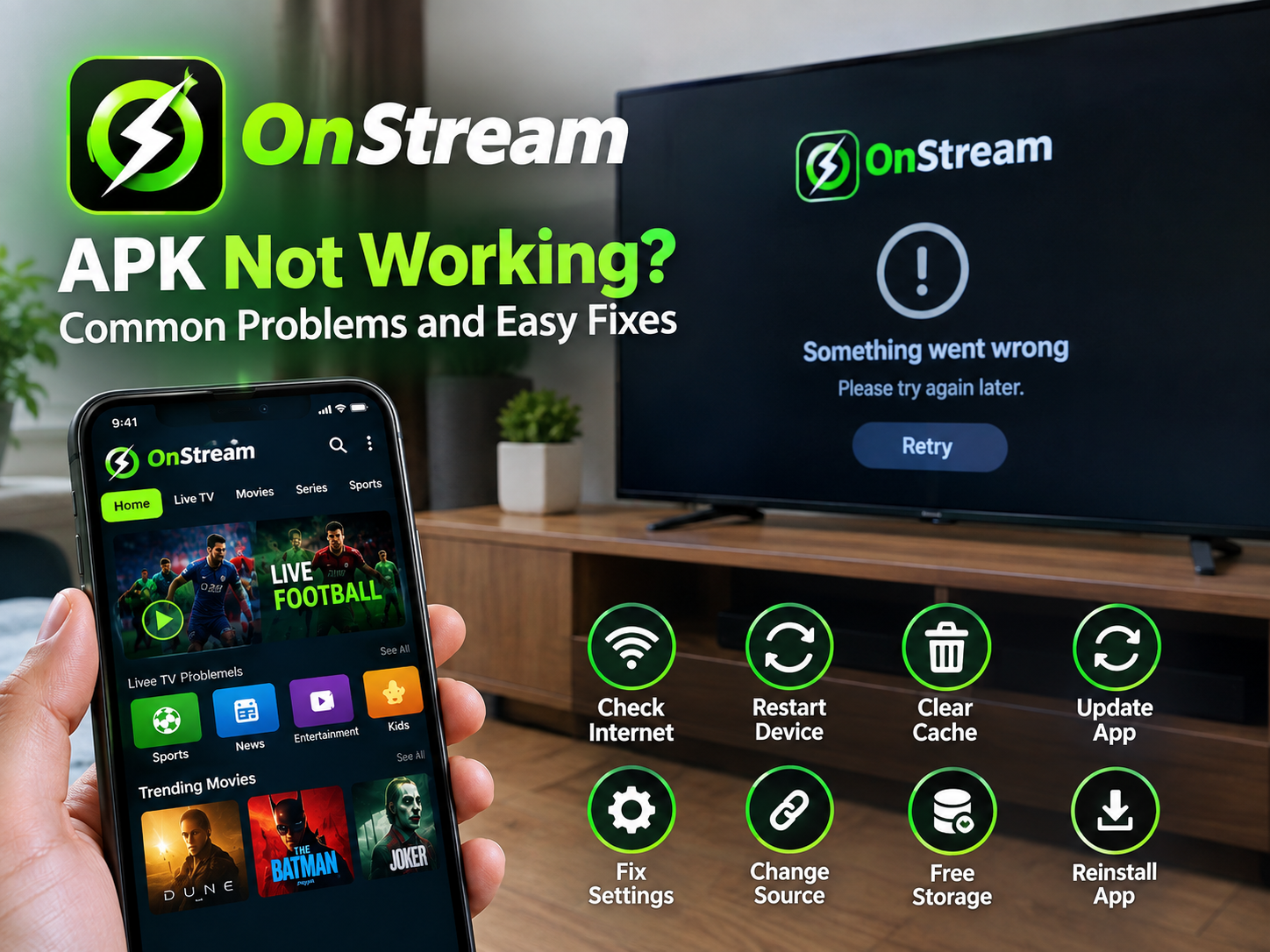
If OnStream APK not working on your Android phone, FireStick, Android TV, or Google TV, the problem is usually easy to fix. Most users face issues such as the app not opening, buffering, a network error, no data links, crashing, or videos not playing.
Start with the quick fixes first. You usually do not need to change many settings or reinstall the app immediately.
OnStream APK Not Working: Start With These Quick Fixes
Before using advanced solutions, do these basic checks:
- Restart your device.
- Close OnStream and open it again.
- Check your Wi-Fi or mobile data connection.
- Try playing another movie or episode.
- Clear the OnStream app cache.
- Update the app if a newer version is available.
These steps solve many temporary loading and playback problems. If the app still does not work, use the fix that matches your issue.
Restart Your Android, TV, or FireStick
Restarting clears temporary memory and background errors. It is the easiest fix when OnStream is stuck on the loading screen, freezes, or keeps closing.
On Android Phone
- Hold the power button.
- Tap Restart.
- Wait until the phone turns on.
- Open OnStream and test a video.
On FireStick or Android TV
- Open Settings.
- Go to My Fire TV or Device Preferences.
- Select Restart.
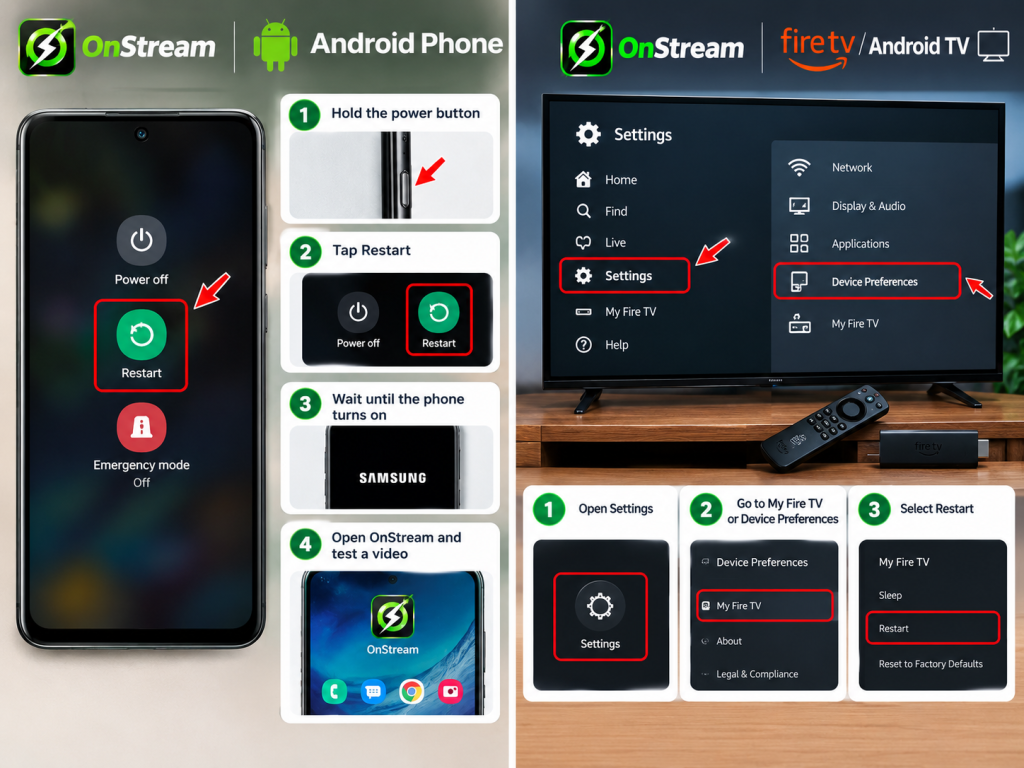
You can also unplug the FireStick power cable for around 30 seconds and plug it back in. Restarting is frequently recommended for OnStream crashes, loading errors, and playback problems.
Check Your Internet Connection
A weak or unstable internet connection is a common reason for OnStream APK not working. The app may show a network error, fail to load content, or keep buffering.
Open YouTube or another streaming app on the same device.
- If other apps are also slow, restart your router.
- If YouTube works but OnStream does not, test another movie or streaming source.
- Switch Wi-Fi to mobile data, or mobile data to Wi-Fi.
- Move closer to your Wi-Fi router if the signal is weak.
- Use a 5 GHz Wi-Fi network when your router and device support it.
If you use a VPN, turn it off once and check OnStream again. Some VPN servers can slow the connection or block the app. If you do not use a VPN and the issue happens only on your current network, testing another network can help identify the cause.
Clear OnStream Cache
The app cache stores temporary files. Over time, these files can become corrupted and cause app crashes, slow loading, black screens, or video playback errors.
On Android Devices
- Open Settings.
- Go to Apps or Manage Apps.
- Select OnStream.
- Tap Storage.
- Choose Clear Cache.
- Reopen the app.
On FireStick
- Open Settings.
- Select Applications.
- Choose Manage Installed Applications.
- Open OnStream.
- Click Clear Cache.
- Choose Force Stop, then launch the app again.
Clear the cache first. Do not choose Clear Data unless the cache fix does not work, because clearing data may reset your local settings and app history.
Fix OnStream Buffering and Video Playback Issues
If videos keep stopping, loading slowly, or showing a black screen, the issue may be the selected source, internet speed, video quality, or device performance.
Try these fixes in order:
- Pause the video and wait for a few seconds before playing it again.
- Select another server or stream link inside the video player, if available.
- Lower the video quality from 1080p to 720p.
- Close apps running in the background.
- Restart your Wi-Fi router.
- Restart your device.
- Clear the OnStream cache.
A single movie, episode, or server can be temporarily unavailable. If another title plays correctly, the app itself is likely working. Switching stream sources, using a stronger Wi-Fi connection, and closing background apps can improve playback on lower-specification devices.
Update OnStream APK to the Latest Version
An old OnStream version may stop working correctly after app-side changes. Updating can fix crashes, loading errors, missing data links, and playback problems.
To update OnStream safely:
- Check the version currently installed on your device.
- Download the latest APK only from a source you trust.
- Install the update over the existing app when possible.
- Restart your device after updating.
- Open OnStream and test it again.
Do not install random modified APK files simply because they claim to be “premium” or “fixed.” Unknown files can be outdated, unsafe, or incompatible with your device. Outdated app versions are often linked to playback and loading issues, while a clean update or reinstall can resolve corrupted installation files.
OnStream Keeps Crashing or Will Not Open
When OnStream APK Not Working means the app opens and closes immediately, freezes on its logo, or does not start, use these steps.
Force Stop the App
Force Stop fully closes all active OnStream processes.
- Go to Settings > Apps > OnStream.
- Select Force Stop.
- Tap OK to confirm.
- Open OnStream again.
Clear Cache and Data
If Force Stop does not help, clear the cache. If the app still crashes, select Clear Data from the same Storage page. This resets the app, so you may need to set up preferences again.
Check Device Storage
Low storage can make streaming apps slow or unstable. Delete unused applications, old downloads, screenshots, or large videos. Then restart the device and open OnStream again.
Reinstall the App
If the app still will not open, uninstall it, restart your device, and install a fresh copy from a trusted source. Reinstalling is a practical final step after force-stopping, clearing cache, checking the connection, and updating the app.
Fix “Couldn’t Load” or Network Error
The “Couldn’t Load” message or an OnStream network error does not always mean your internet is down. It may happen because of temporary server issues, app cache problems, an outdated version, or a connection setting.
Follow this simple order:
- Test your internet with another streaming app.
- Restart the router and device.
- Switch between Wi-Fi and mobile data.
- Force Stop OnStream.
- Clear the app cache.
- Update the OnStream APK.
- Try again later if every title shows the same error.
If only one episode fails, choose another episode or title to confirm whether the issue is limited to that stream. Standard troubleshooting guidance for the “Couldn’t Load” error includes checking the connection, force-stopping the app, clearing cache/data, updating, and reinstalling if necessary.
No Data Links Available on OnStream
The no data links available issue can appear when OnStream cannot retrieve a working source for a movie or TV episode. This may be a temporary content-source problem rather than a device issue.
Try the following:
- Refresh the title page.
- Open another movie or episode.
- Restart the app.
- Clear cache.
- Update the app.
- Try again after some time.
Do not repeatedly reinstall the app if only one title has no links. First check whether other content plays normally. Guides for this problem recommend cache clearing and testing playback again on Android, Android TV, and FireStick.
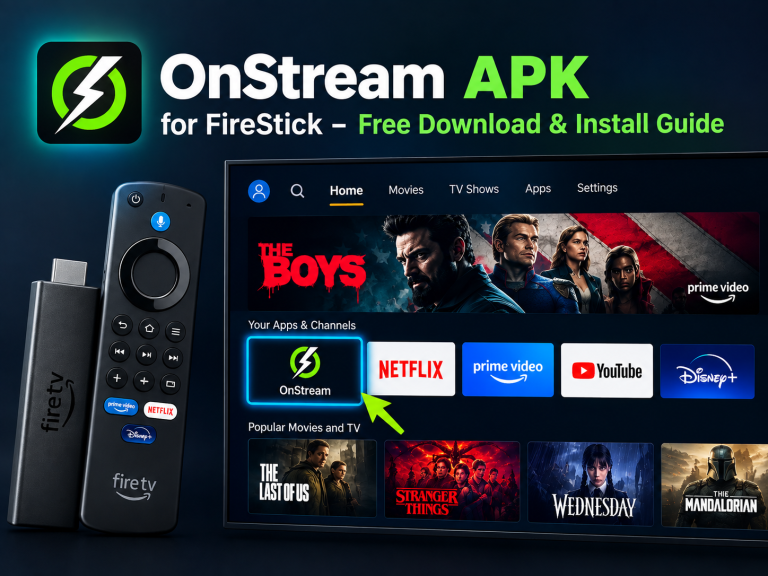
OnStream Not Working on FireStick
FireStick has limited storage and memory, so apps may crash or buffer when too many apps are installed.
Use these FireStick-specific fixes:
- Restart the FireStick.
- Clear the OnStream cache.
- Remove apps you no longer use.
- Restart your router.
- Update Fire OS from Settings > My Fire TV > About > Check for Updates.
- Reinstall the latest compatible OnStream APK if needed.
If your FireStick cannot install the APK, make sure the installer you use has permission under Settings > My Fire TV > Developer Options > Install Unknown Apps. Enable this setting only for a downloader or file manager you trust, then disable it when you finish.
Conclusion
Most OnStream APK Not Working problems are fixed by restarting the device, checking internet speed, clearing the cache, changing the stream source, and updating the app. Start with the easiest solution and move to the next one only if needed.
If OnStream still fails after all fixes, test another network and wait before reinstalling again. A temporary server or content-link problem can resolve on its own, while your device and internet may be working perfectly.
Frequently Asked Questions
How do I fix OnStream buffering problems?
Use a stable Wi-Fi connection, restart your router, close background apps, clear the OnStream cache, and lower video quality from 1080p to 720p.
Why does OnStream show a network error?
A network error can occur due to unstable Wi-Fi, VPN settings, server downtime, or outdated app files. Test another network, disable VPN, and update the app.
What should I do if OnStream keeps crashing?
Force stop OnStream from device settings, clear cache, free up storage space, restart your Android or FireStick, and reinstall the app if the issue continues.
How can I fix no data links on OnStream?
Refresh the movie page, try another episode or title, clear cache, update the app, and wait before trying again because some streaming links may be temporarily unavailable.